
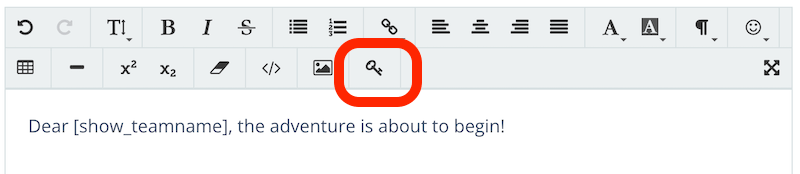
Our keyword feature is the ultimate storytelling booster for your scavenger hunt events. It takes interaction and communication with your teams to a whole new level!
With targeted keywords, you can address teams directly in game information and tasks – in a personal and motivating way.
This is how it works: You place special keywords in your Tabspot and event texts, which are automatically replaced in the app with individual data such as team names, points scored or task status.
Calculations can also be performed to dynamically adapt content to the score or solution status. This allows the game to react even more precisely to your team’s actions.
Example 1
Example 1 shows the possibility of personalising your digital scavenger hunt event by constantly displaying the individual team name.
“Hello team [show_teamname], welcome to event XY!”
“Great team [show_teamname], you solved the task correctly!”
“Keep it up [show_teamname], you’re on the right way!”
Example 2
Example 2 shows how you can motivate players/teams through constant feedback.
“Great team [show_teamname], you have currently scored [show_scored_points]! Keep up the good work!”
“Dear team [show_teamname], half the playing time is over. You have now played [show_played_tasks] tasks. There are still [show_open_tasks] tasks waiting for you. So get to work!”
“Hey, well played so far! You’ve solved all of the [show_played_tasks] tasks correctly and answered [show_failed_tasks] tasks incorrectly.”
Example 3
Even the content of your texts can be replaced by individual values. Take a look at the following sentences!
“Hey, half the game is over! [show_solved_tasks MAX:8 CONTENT: The overall result can still be improved. Give it another go at the last stations!][show_solved_tasks MIN:9 MAX:12 CONTENT:Not a bad result overall, but of course there’s still room for improvement! Let’s go!][show_solved_tasks MIN:13 CONTENT:The result is more than impressive. Keep it up on the last stages of this challenge!]“
An overview of the keywords
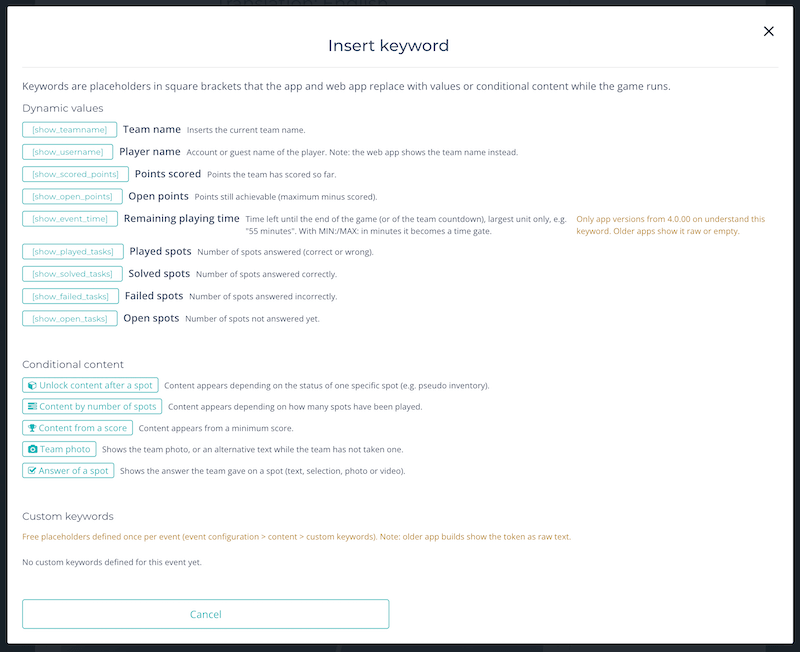
The 8 standard keywords #
There is a whole range of exciting keywords that you can use in our serious games scavenger hunt software. Please note that some of them do not yet work in the web app. You should always test well in any case!
[show_teamname] – shows the team name of a team/player!
[show_username] – shows specifically only the username of a player account!
[show_played_tasks] – shows the number of tabspots played!
[show_solved_tasks] – shows the number of correctly solved tabspots!
[show_failed_tasks] – shows the number of incorrectly solved tabspots!
[show_open_tasks] – shows the number of open tabspots in the event!
[show_scored_points] – shows the number of points scored!
[show_open_points] – shows the number of points still to be scored!
Conditional keywords #
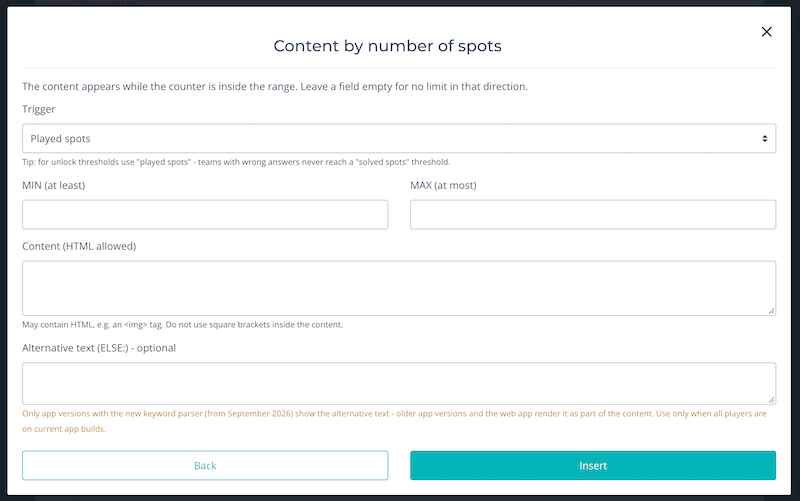
The most exciting part of keywords is the use of conditions. Content only appears once the team has achieved something. If the condition is not met, the entire block disappears without a trace. Players will not see a gap or an error message.
Optionally, you can specify alternative content that will be displayed instead.
The keyword dialog provides three guided options for this. You only need to fill in the required fields, the dialog automatically generates the correct syntax for you.
Our conditional keywords
[show_played_tasks MIN:8 CONTENT: Your text] – only shows text if at least 8 tab spots have been played. Also works with the other keywords.
[show_played_tasks MAX:9 CONTENT: Your text] – only shows text if a maximum of 9 tab spots have been played. Also works with the other keywords.
[show_played_tasks MIN:2 MAX:9 CONTENT: Your text] – only shows text if a minimum of 2 and a maximum of 9 tab spots have been played. Also works with the other keywords!
[show_played_tasks ID:1928 CONTENT:Your text] – only shows text if the tabspot with the ID:1928 has been played. Also works with the other keywords!
[show_played_tasks NR:3 CONTENT: Your text] – only shows text if tabspot number 3 was played in the event. Also works with the other keywords!
[show_teamname NR:3] – shows the team name of team no. 3.
[show_teamname ID:323214] – shows the team name of the team with the ID: 323421.
ID or Position (NR)? #
Normally, the condition references a Spot using its Spot ID. These IDs are assigned by the system when the Spots are created and this is where the biggest pitfall of the feature lies.
If you copy an event, all Spots in the copy receive new IDs. As a result, any copied ID-based conditions will silently stop displaying content. The same thing happens if an event is deleted and re-uploaded.
The alternative, “By Position (NR:)”, references the Spot by its position number. This survives copying and re-uploading an event, but the reference changes if you reorder your Spots.
Keywords can be nested (app versions from September 2026 onwards): #
A Keyword within the CONTENT: of another Keyword will also be replaced. The inner content is only displayed if both conditions are met (AND condition).
For example, [show_scored_points MIN:100 CONTENT:[show_played_tasks ID:17 CONTENT:Bonus unlocked!]] will only appear once the team has collected at least 100 points and played Spot 17.
Older app versions stop processing at the first closing bracket. As a result, nested Keywords may be displayed incorrectly or in fragments to the player.
When using nested Keywords, avoid using individual square brackets elsewhere in the text.
Custom keywords
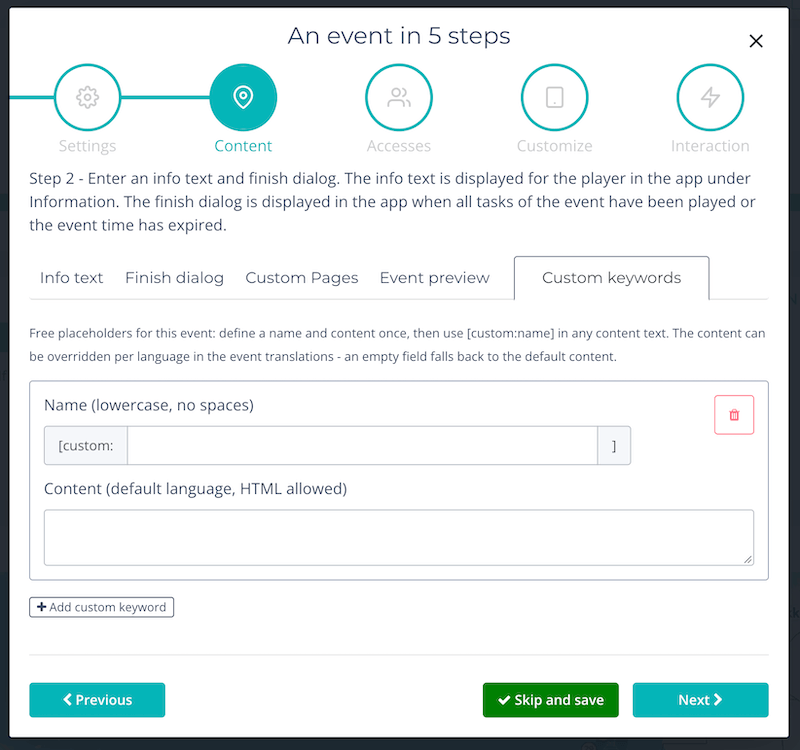
In addition to the built-in keywords, you can create your own placeholders for each event. These are useful for information that appears in multiple places and may change from time to time, such as a meeting point, contact person, sponsor name or central code word.
You define the name and content once and then simply use [custom:name] in your texts.
If the information changes, you only need to update it in one place.
Define & use #
Define: Go to Event Configuration → “Content” → “Custom Keywords”. The name must be written in lowercase without spaces (letters, numbers, hyphens and underscores are allowed) and must be unique within the event.
The form checks this when you save it.
Use: Insert your custom keyword into any content text as [custom:name]. The easiest way is via the keyword dialog, which lists all defined placeholders together with a preview of their content.
Translate: The event translations also include a “custom keywords” tab, with a separate field for each placeholder and language. If a field is left empty, the default content is used automatically. This means you only need to translate values that actually differ between languages.
How custom keywords work #
- The content can include HTML and even standard keywords. For example, [show_teamname] within the content will be replaced as usual during the game.
- A placeholder without a matching definition, for example due to a typo in its name, remains visible as raw text in the game. This is not ideal for players, but it makes the error easy to spot during testing.
- Changes to the content take effect the next time a team fully loads the event. Texts that have already been loaded do not update immediately during an ongoing game.
- Custom keywords are referenced by their name. This means they remain intact when an event is copied or re-uploaded, unlike conditions that reference Spot IDs.
- A custom keyword cannot contain another custom keyword. Inserted content is not searched again for [custom:…] placeholders.
The code word trick: Custom keywords in solutions #
Custom keywords also work in Spot passwords and solutions. This allows you to manage a code word centrally that players need to enter at multiple Spots.
If the code word changes, you only need to update it in one place.
Important: For solutions and passwords, use plain text only as the content of a custom keyword. Do not use HTML or standard keywords, as players must be able to enter the replaced value exactly.
App version requirements #
Custom keywords only work with app versions released from September 2026 onwards. Older app versions will display [custom:name] as raw text.
Only use custom keywords in live events once you know that your target audience is using an app version from September 2026 or later.
Where keywords are replaced and where they are not
Keywords are replaced wherever players see content in the app or browser version:
At a Spot: Title, description, challenge text, response texts for correct and incorrect answers, and hints.
At Event level: Info text, custom pages and finish text.
In Team Chat (app only): Chat messages also support keyword replacement.
Keywords are not replaced outside the game.
In these cases, the placeholder remains visible as raw text. For example:
In the Roadbook printout: The PDF is generated before the event, when no team data is available yet. This means keywords will remain visible in the printout. If necessary, keep roadbook texts free of keywords.
In emails and other outputs outside the app and browser version.
There are two intentional differences between the app and browser version. [show_username] displays the team name in the browser version, and team chat is only available in the app.
All other keywords behave identically.
Best practices & common pitfalls
The ID issue when copying events: Spot IDs are generated when spots are created. When an event is copied, all spots in the copy receive new IDs. Any copied ID: conditions will still reference the spots from the original event and will therefore silently display nothing in the copied event, without showing an error message.
The same thing happens if an event is deleted and re-uploaded, for example via JSON.
For this reason, checking all ID-based conditions should always be part of your checklist after copying or re-uploading an event.
Recommended workflow: As long as the spot order is still changing, use NR:.
Once the event structure is final, switch to ID:.
A spot’s position changes when spots are reordered, whereas its ID does not.
Use “played spots” for thresholds rather than “solved spots”. Otherwise, teams that answer some challenges incorrectly may never reach the required threshold and could get stuck in the story.
Model decisions as separate spots: Keywords can check whether a spot has been played or solved, but they cannot determine which answer a team selected.
If a player’s choice should have consequences, create a separate hidden consequence spot for each option and use its status as the condition.
Always verify everything in a test run: Conditions can fail silently. The only reliable way to check whether IDs are correct, thresholds work and content appears as intended is to play through the relevant parts of the event.
Always include a test run in your workflow, especially after uploads or changes to the spot order.
New features and older app versions #
The basic keywords and conditional patterns have been available in the app and browser version for years.
New additions include the alternative content (ELSE), custom keywords and the ability to nest keywords inside one another.
These features require current app versions released from September 2026 onwards.
On older versions, they may appear as raw text or as part of the content. The browser version is centrally maintained and is always up to date.
Rule of thumb: For events with an open audience, use the new features conservatively. For closed events where you know participants are using a freshly installed app, you can use them sooner. The dialogs in the CMS display warnings where relevant.
Frequently asked questions
Players see [show_teamname] as text – why?
This is usually caused by a typo or by using a new feature with an older app version.
For [custom:…], check that the name is defined exactly the same way in the custom keywords tab.
My conditional content never appears.
Either the condition has not been met or it references an invalid spot ID because the event was copied or re-uploaded.
Check the ID in the challenge overview and test the relevant part of the event.
Keywords appear as raw text in the roadbook printout.
This is normal. The roadbook is generated before the event, when no team data is available. Keywords are only replaced during the game.
The welcome message shows the login name instead of the team name.
[show_teamname] contains the account name until the team has entered its own team name.
Use this placeholder only after the team name has been entered.
Can I check which answer a team selected?
No. Keywords can only check the status of a spot: played, solved, answered incorrectly or open.
The usual approach is to create a separate consequence spot for each answer option and then check the status of that spot.
Do Keywords work in solutions?
Standard keywords do not. They are not replaced in solution fields.
Custom keywords do work in solutions. For example, you can use them to centrally manage a code word. Use plain text only in this case.
Does an incorrectly answered Spot count as “played”?
Yes. “Played” means that the spot has been answered, regardless of whether the answer was correct or incorrect.
“Solved” counts only correct answers, “answered incorrectly” counts only incorrect answers, and “open” refers to spots that have not yet been answered.
Can I preview the result?
Not directly in the editor. Keywords remain visible as raw text there.
To check the final result, create a test team and play through the relevant parts of the event in the app or browser version.