A team finds a key – and suddenly it appears in their virtual inventory. Another team reaches 100 points and unlocks a new hint. In a challenge, the team is addressed directly by name. And the meeting point for the finale only needs to be changed in one place, even though it appears several times throughout the game.
These are exactly the kinds of situations where Keywords in espoto come into play.
Keywords are dynamic placeholders that allow texts and content to automatically adapt to the respective team and the current progress of the game. The feature has been available in espoto for some time – but with our latest update, we have significantly expanded it and, above all, made it much easier to use.
Keywords can now be selected and inserted directly via the text editor in the espoto Editor. For most use cases, there is no longer any need to consult a separate overview or manually build complex Keywords.
What exactly are Keywords?
The principle is simple: instead of using a fixed value in your text, you insert a placeholder.
For example:
“Hello [show_teamname], are you ready for the next challenge?”
During the game, this could become:
“Hello The Milk Pirates, are you ready for the next challenge?”
The app or browser version automatically replaces the Keyword with the current value for the respective team. In addition to the team name, you can integrate values such as the current score or the number of played, solved and open spots directly into your texts.
This allows your game content to respond much more dynamically to what is actually happening during an event.
New: Select Keywords directly in the text editor
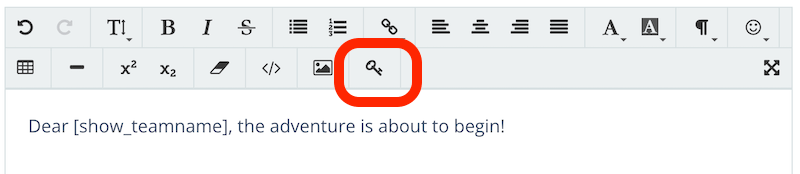
Perhaps the most important improvement in this update is not a new Keyword at all, but the much easier workflow.
You will now find a dedicated Keyword button in the text editor toolbar. It opens a dialog containing the available dynamic values, conditions and custom placeholders.
Instead of looking up the correct syntax, simply select “Team name”, “Score” or “Open spots”, for example – espoto automatically inserts the corresponding placeholder at the desired position.
Things get even more interesting when working with more complex conditions. These can now also be created using guided dialogs.
Eight dynamic values available directly in the Editor
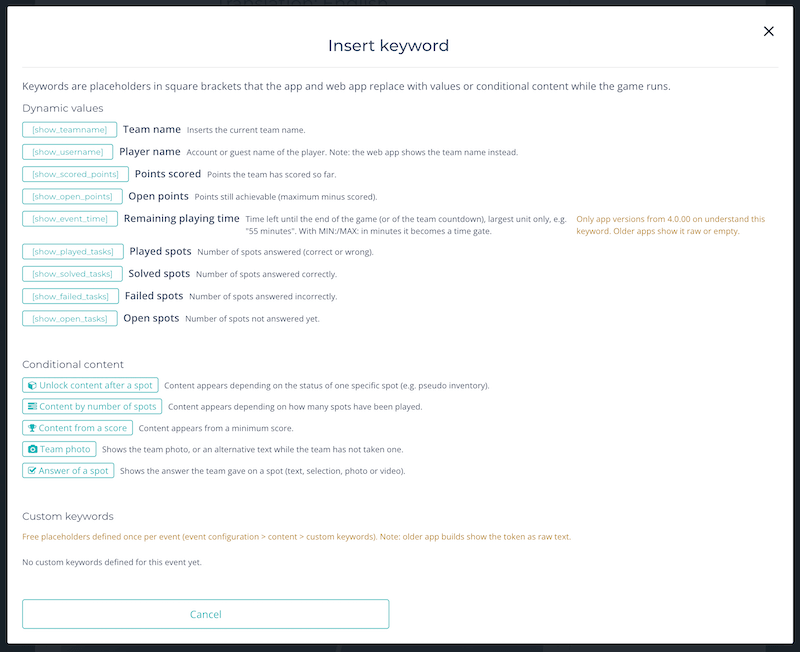
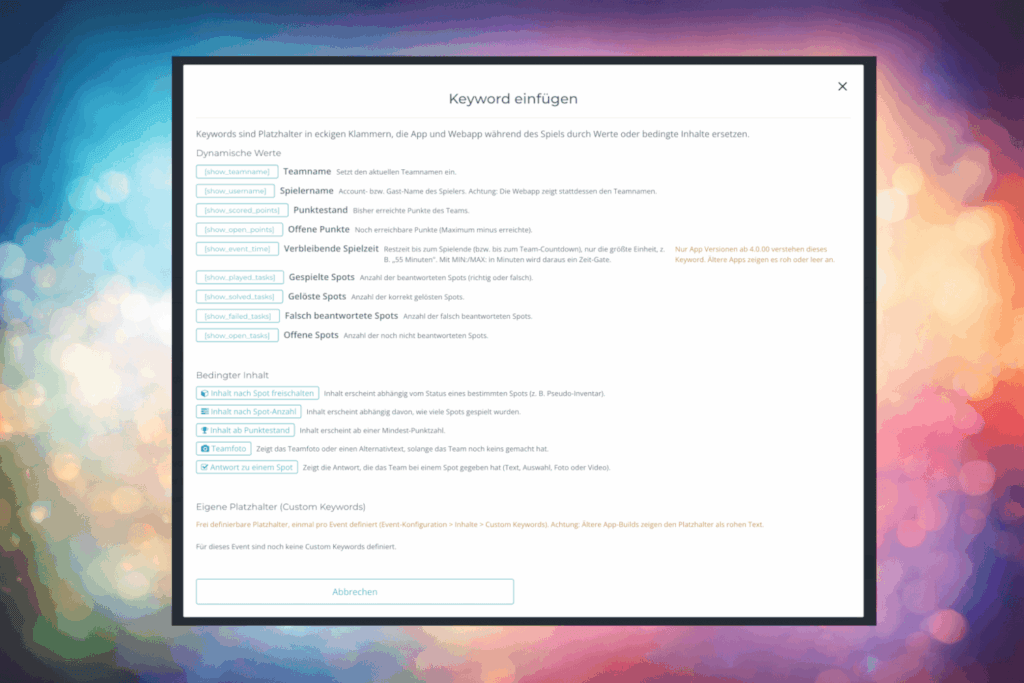
There are currently eight standard Keywords available. In addition to the team and player name, you can access points scored and points still available, as well as played, solved, incorrectly answered and open spots.
This makes it possible to create messages such as:
“Great job, [show_teamname]! You have already collected [show_scored_points] points and successfully solved [show_solved_tasks] challenges.”
There is no need to update these values manually. They automatically reflect the current progress of the respective team.
Storytelling based on game progress
But Keywords can do much more than simply replace a value within a sentence.
Content can also be linked to specific conditions.
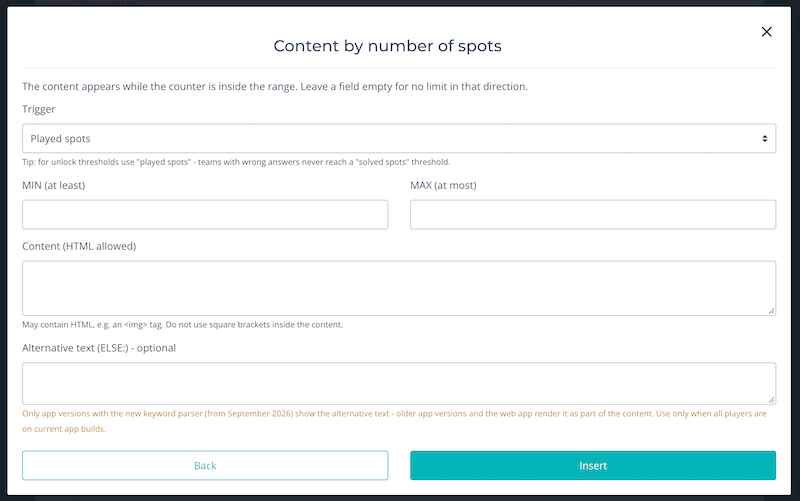
For example, a text can appear only after a particular spot has been played. A new chapter of the story can begin after five completed spots. Or a special hint can be displayed only after a team has reached at least 100 points.
The new Keyword dialog provides three guided options: unlock content after a specific spot, display content based on the number of spots played, or link content to a particular score.
This turns a simple placeholder into a powerful tool for dynamic storytelling.
From a key to a virtual inventory
A great example is a virtual inventory.
Imagine that the teams discover a key during the game. On a dedicated page within the event, you could initially display:
“You haven’t found this item yet.”
As soon as the corresponding spot has been played, a key can appear instead – including an image and additional text.
And this is not limited to keys. Documents, equipment, hints, pieces of evidence or other virtual items can be displayed or hidden depending on the team’s progress.
New: Create your own Custom Keywords
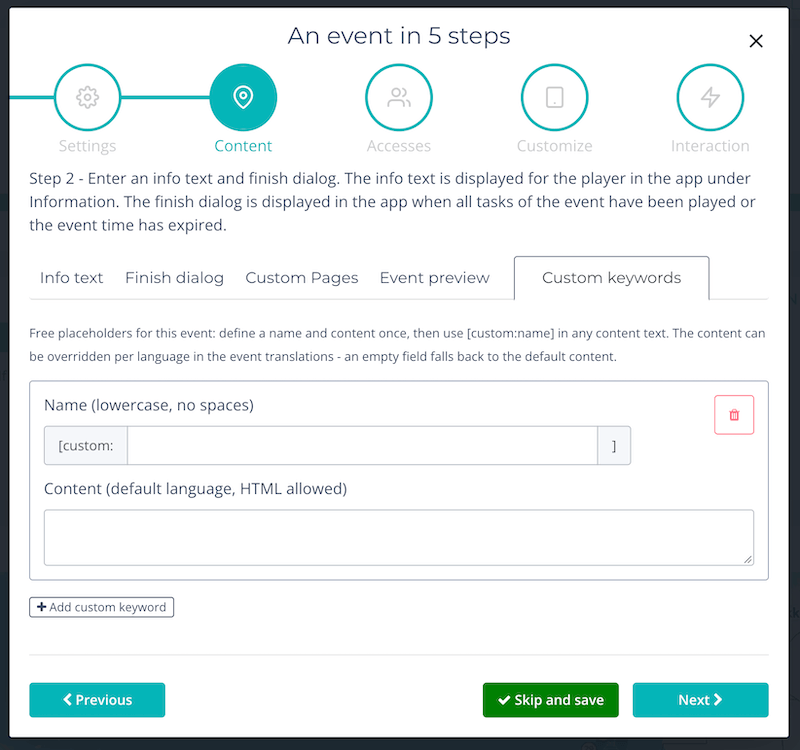
Another important new feature is Custom Keywords.
They allow you to define your own placeholders for an event.
A typical example is the meeting point. Imagine it is mentioned in five different places throughout your game. Previously, if the meeting point changed, you might have had to update all five texts individually.
Now you can define it once centrally:
[custom:meetingpoint] = At the fountain in front of the large gate
You then simply use the Custom Keyword wherever the meeting point is required. If the location changes later, you only need to update the value in one place.
The same approach works for contact persons, sponsors, locations or central code words.
Multilingual events are covered too: Custom Keywords can have individual values for each language. If no translation is provided, espoto automatically uses the default content.
Manage code words centrally
Custom Keywords open up another useful option: they can also be used in solutions and spot passwords.
For example, if the same code word is used in several parts of a game, you can store it centrally as a Custom Keyword. If you want to change the code word later, you no longer need to edit every individual challenge.
This can make maintenance significantly easier, especially for larger games or game templates that are regularly adapted for different customers.
New: What happens if a condition has not yet been met?
There is also a new option for conditional content.
With ELSE, you can now define alternative content.
Here is a simple example:
As long as a team has not found the key:
“The gate is locked. You still need to find a key.”
After the corresponding spot has been played:
“You have the key – the gate can now be opened!”
This means content does not simply have to appear or disappear. The text itself can change depending on the team’s progress.
Going one step further: Combine multiple conditions
If you want to take your game design one step further, Keywords can even be nested inside one another on current app versions.
This allows you to create an AND combination of multiple conditions.
For example, a bonus could become visible only after a team has collected at least 100 points and played a specific spot.
This makes it possible to create much more sophisticated game flows without having to create a separate visible spot for every possible situation.
Keywords and the Storytelling Board work together
It is important to distinguish Keywords from our new Storytelling Board.
Both features can be used to create dynamic game experiences, but they serve different purposes.
The Storytelling Board controls, for example, which spots and routes a team receives. Keywords, on the other hand, determine which content is displayed within your texts. Both systems can be combined.
This creates even more opportunities to design games that adapt to the teams’ decisions, progress and performance.
Less syntax, more game design
Keywords have long been one of the more powerful tools available in espoto. With the latest update, our main goal is to make them much easier to use.
Direct selection in the text editor, guided conditions, Custom Keywords, alternative content and combined conditions not only expand the feature but also make it much more accessible.
Instead of focusing on the correct syntax, you can spend more time thinking about the question that really matters:
What should your players experience at this point in the game?
You can find a detailed explanation of Keywords, practical examples and technical instructions in our espoto support section.